Have you ever tried to install apps and take pictures, and suddenly got the annoying message "storage space running out”? At that point, you start searching “how do I clear up storage on my phone?”
You don't need to panic. With the right tips and tricks, you can easily free up space on your phone even without deleting anything you love. In this guide, you will learn some straightforward methods on how to clear phone storage on either your Android phone or iPhone.
Table of Content
- Understanding Your Phone Storage
- How to Check Your Phone Storage (both Android & iPhone)
- Tips for Clearing Internal Storage of Your Smartphone
- Managing Phone Storage for Optimal Performance
- Conclusion
Understanding Your Phone Storage
In order to store your stuff, smartphones use internal flash memory, which keeps your mobile data safe even when your phone is off. Here are the three main categories of your phone’s System storage:
Operating system: This is the dedicated space used by the operating system and pre-installed system.
App storage: This is the space that includes the downloaded apps along with their data.
Personal data: This includes photos, music, videos, and documents.
How to Check Your Phone Storage (Both Android & iPhone)
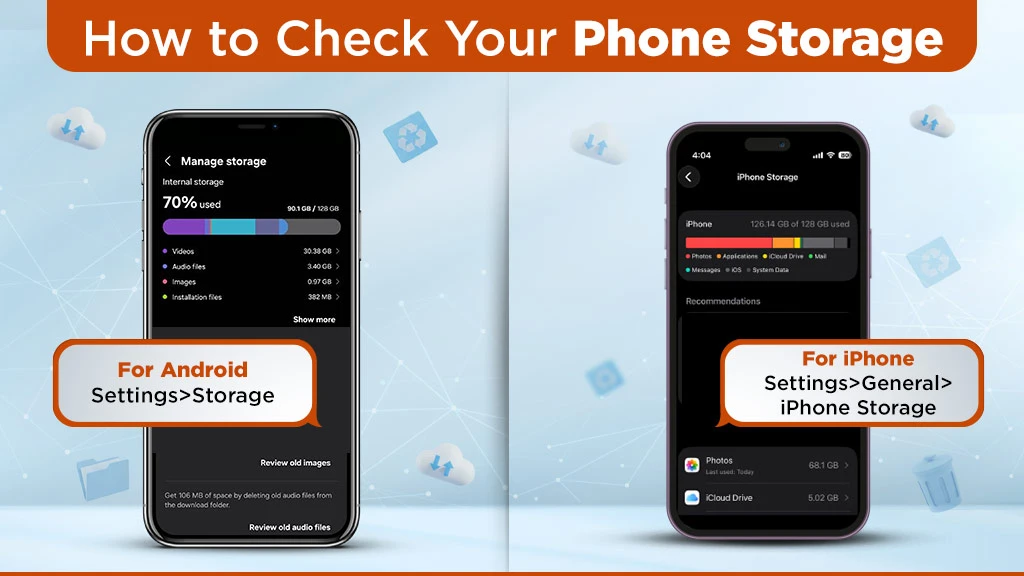
Before learning how to clear storage space on your phone, you must know how much storage your phone has. With a few simple steps, you can find an app and unused data that take up a lot of space and are never used.
Hence, follow the steps and find out how much storage your Android and iPhone have, which app or content takes up the most space, and how much memory is left on your smartphone.
Check storage on Android:
- Firstly, go to “settings.”
- Tap the “storage” option.
- From there, you can see how your phone storage is being allocated.
Check storage on iPhone:
- Go to settings and choose general.
- Next, select the iPhone storage option.
- After that, at the top of your screen, you can see how much storage is allocated on your iPhone.
On both devices, you will see a colour-coded bar. This bar shows you how much space is used by apps, photos, videos, messages, and system data. With this table, you can prioritise what to clear first.
Tips for Clearing Internal Storage of Your Smartphone
“Storage space running out,” this pop-up message is incredibly annoying as it disrupts software downloading and picture-taking abilities. Hence, let's delve into some straightforward methods of how to clear internal storage on Android and iPhone as well.
Delete Unused Apps
Getting rid of unneeded applications stands as the easiest approach to recover unused memory space. Most people download the apps because they are curious, but later on, they forget to remove them from their phones.
The installed apps that remain unutilized can decrease your device’s speed. Hence, deleting or offloading these apps will help you free up the space you desperately require.
On the iPhone:
- Firstly, go to the settings > general > iPhone storage.
- After that, you will see a complete list of applications sorted by the amount of storage space used.
- Select an app, and you will get the option of deleting it or offloading it.
- You can also select to automatically offload any apps you haven’t used in a while. All you have to do is go to settings > app store and then toggle on “offload unused apps.”
On the Android:
- Navigate to settings and select storage, and then apps for a similar breakdown.
- After that, you will see a list of every app that you have on your phone, along with how much space it is taking up.
- Then, select the app that you don’t want to use, click it, and select the “uninstall” option.
Back up your Smartphone to the Cloud
If you don’t have time to sift through old photos and videos but you want to keep some media files, then back them up to a cloud storage service like Dropbox.
On an iPhone device, open Settings>select Apple ID>iCloud> photos > toggle on iCloud Photos. Select the “optimize iPhone storage” option to save your photos to the cloud, which keeps lower resolution versions of your photos and full resolution in iCloud.
On an Android phone, go to settings > select Google> select back up and sync > upload size>choose original. Moreover, Google Photos also has a free up space feature that automatically deletes photos you have already backed up to the cloud.
Clear your Smartphone Cache
Clearing out your phone's cache will help to free up storage space and will likely enhance your device’s overall performance. Here are the simple steps on how to make space in phone by clearing cache:
How to clear cache on Android?
- Open the settings.
- Select apps & notifications
- Click on the often-used app, like Chrome.
- Tap the storage option and select clear cache.
- Repeat these steps on the other apps that are used heavily on your device.
How to clear cache on iPhone?
The instruction to clear the app cache on an iPhone varies depending on the application and how it was developed. Generally, navigate to the settings > general iPhone storage. Then, you will see your apps listed in order of size. Tap an individual app to check if there are options available to clear the cache. However, if there is no option available, try to uninstall and then reinstall the app.
Manage Downloads and Delete Large Files
Periodically reviewing and deleting unnecessary downloads is a powerful way to remove the “storage space running out” message on your phone screen. You should check your downloads folder and delete files that you no longer need.
Moreover, review and delete old screenshots and duplicate files. You can also use a file manager to locate and delete unneeded files.
Managing Phone Storage for Optimal Performance
Managing your smartphone storage can enhance your phone's performance and keep your device running smoothly. Hence, here are some smart tweaks on how to make space on your phone so that your smartphone runs smoothly:
- If your smartphone supports an SD card, then you can transfer apps, videos, and music to the card. However, this method is only useful for Android users.
- Uninstall the apps you no longer use. Many unused applications can store unnecessary data, which can impact your available space.
- You can use Google Photos to perform a safe or secure backup.
- Delete duplicate files and unnecessary images that often remain in your gallery.
- Make a habit of reviewing your smartphone storage every few weeks.
How can I keep my Smartphone Running Smoothly?
Maintaining ample storage space on your phone improves performance across system responsiveness and speed-related efficiency. To keep your phone running smoothly, the above-mentioned tips will prevent “storage space running out” warnings from appearing. Additionally, you must stay informed about new updates that can assist with storage management.
Frequently Asked Questions On How to Free Up Storage Space on Your Phone?
1. How do I free up storage on my phone?
To free up storage on your smartphone, delete unused applications, clear the cache, remove large files, back them up to the cloud first, and more.
2. How to clear phone storage without deleting anything?
By removing temporary junk, such as app cache, you can free up your phone's storage.
3. What is the fastest way to clear up storage?
The fastest way to clear up storage is by offloading large media files to iCloud, deleting unnecessary apps, clearing caches, and emptying the Recycle Bin.
4. What causes phone storage to be full?
Smartphone storage fills up due to large files, numerous unused apps, downloaded content, system files, and messages.
5. How to clean junk files in phone?
To clean junk files on your phone (Android/iOS), focus on clearing up the caches, deleting unused apps and duplicate files, managing downloads, etc.
6. Will photos delete from Google Photos if I delete on my phone?
No, deleting photos from your phone generally won’t delete them from Google Photos if they were backed up.
7. Do deleted photos stay on your phone?
Yes. Deleted photos stay on your phone in a recently deleted folder for around 30-60 days.
8. How do I clear app cache?
Go to your phone settings> select the specific app > tap storage > select clear cache.
9. What’s the difference between clearing cache and clearing storage?
Clearing the cache means simply deleting the temporary data from an app on your smartphone, while clearing storage resets an app to its factory state.






Related Blogs