Upgrading to a new smartphone is exciting but learn how to transfer data from old phone to new one without losing anything can be daunting. Fortunately, with the correct tools and preparation, you can transfer data to a new phone seamlessly without any hassle.
This complete guide will walk you through the simplest way to transfer data to your new phone without losing valuable information or exposing your personal information.
Table of Content
- Backup your Old Device (Android/iPhone)
- Prepare for the Transfer
- Transferring Data to your new phone from your old phone (Android/iPhone)
Backup your Old Device (Android/iPhone)
Before transferring data from your old phone to your new phone, make sure your current device is completely backed up. This will protect your details and ensure a smooth data transition.
If you are an Android user
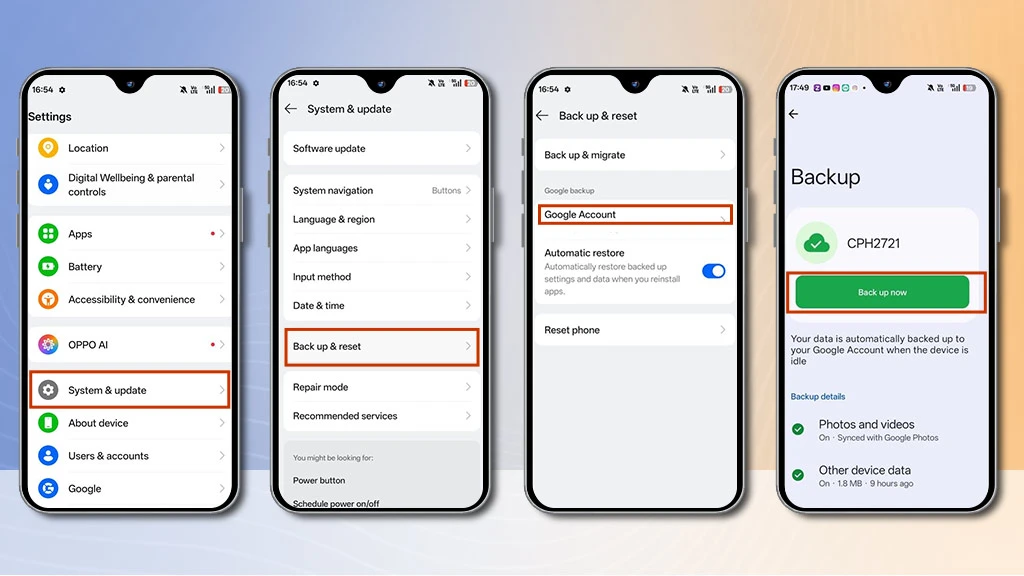
- Navigate to settings > system> backup.
- After that, switch back up to Google Drive.
- Click on the “back up now” option.
If you are an iPhone user
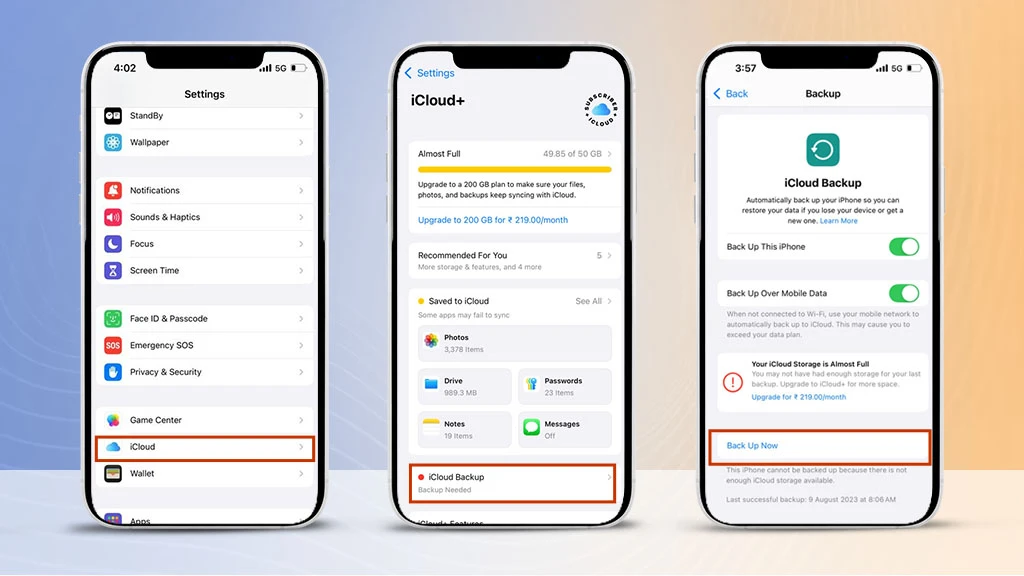
- Open settings > (your name) > iCloud > iCloud backup.
- Simply, turn on iCloud back up and click on the Back Up Now option.
Prepare for the Transfer
Once you back up your photos, documents, accounts, and settings to your iCloud account, you have to do a few quick steps before you transfer data to new phone.
- Charge both devices: keep your old and new phones' batteries fully charged.
- Connect to wi-fi: A fast and stable wi-fi connection will help the data transfer process go smoothly.
- Decide when to move the SIM card: Some people keep their SIM card in the old device until after transferring to avoid missing calls during the switch.
Transferring Data to Your New Phone from Your Old Phone (Android/iPhone)
Whether you are upgrading your phone from iPhone to iPhone, Android to Android, or switching platforms, the process for transferring your data is simpler than ever.
How to Transfer Data from Android to Android?

Using a wired connection: A direct cable connection can facilitate a quick data transfer between two Android devices. Here are the steps you can follow:
- First, connect your old and new Android phones with a USB cable, or use a USB adapter if needed.
- After that, a prompt will display on your old phone screen. Simply select the “transfer files” option.
- Next, follow the on-screen instructions on your new Android phone to import the data from the old device.
- Select the data you want to transfer.
Using Wireless Connection: Google Drive offers a straightforward means to transfer data from Android to Android. Here is how you can do it:
- On your old Android device, navigate to settings > tap on system > backup. Make sure the “back up to Google Drive” option is enabled.
- Next, allow your device to finish the backup process.
- On your new Android phone, start the setup process. When prompted, choose the restore option from a backup.
- Select the backup from your old phone and allow the data to be transferred to your new phone.
How to Transfer Data from iPhone to iPhone?
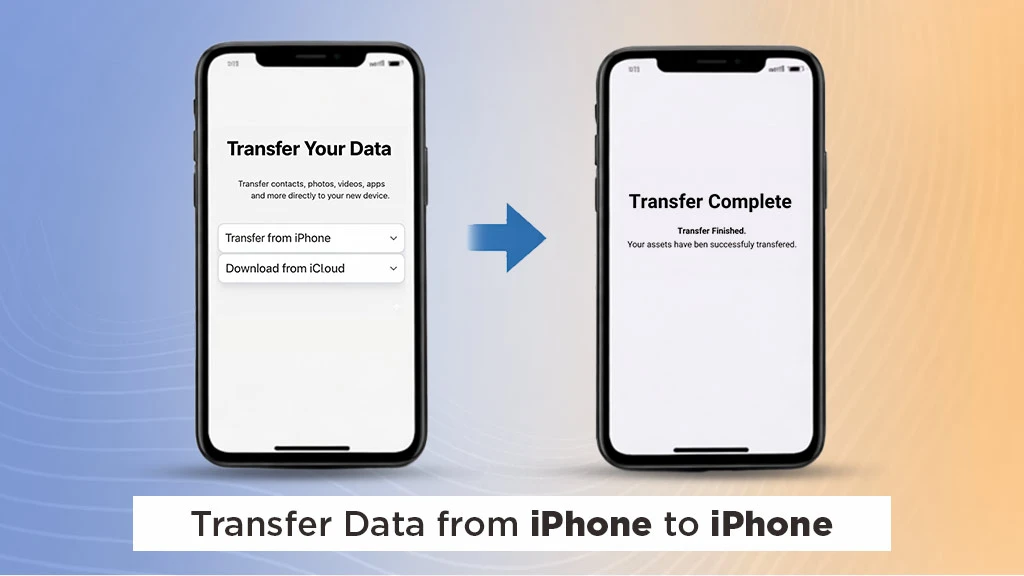
Using a Wired Connection: If you want to avoid using Wi-Fi or a computer, you can directly copy phone data to new phone using a cable.
- Firstly, connect both iPhones using a Lightning to USB 3 camera adapter and a Lightning to USB cable.
- Next, on your new iPhone, a prompt will display asking if you trust the connected device. Tap the “trust” option.
- Select “transfer from iPhone” on your new iPhone device and follow the on-screen instructions.
- Next, select the “transfer directly from iPhone” option and wait for a minute to complete the process.
Note: This old phone to new phone data transfer method requires accessories, which might be purchased only at Apple stores.
Using Wireless Connection: The “Quick Start” method is the most convenient way to transfer data between two iPhones. Here is how you can start the process:
- Firstly, turn on your new iPhone and place it beside your old iPhone. Your old phone should be unlocked and connected to a wi-fi network.
- On your old iPhone screen, the “set up new iPhone” message will display. Tap the “continue” option to proceed.
- An animated pattern will appear on your new iPhone screen – scan it with your old device camera.
- Enter your old iPhone’s passcode on your new iPhone.
- Follow the on-screen instructions, including the Touch ID and Face ID.
- Select the “transfer from iPhone” option to transfer all your data.
- Keep both your iPhone close and connected to power until the transferring process is complete.
Another wireless method of transferring data from iPhone to iPhone is the iCloud backup method. In this way, you must reset your iPhone so you can enter the setup phase.
- Firstly, back up your old iPhone to iCloud.
- Turn on your new iPhone and follow the setup procedure until your screen displays the “apps and data” option.
- Select the “restore from iCloud backup” option.
- Sign in to your iCloud account and then select the most recent backup.
- After that, wait for the restore process to complete. Keep in mind that, with this method, you must have enough iCloud storage for larger backups.
How to Transfer Data from iPhone to Android?
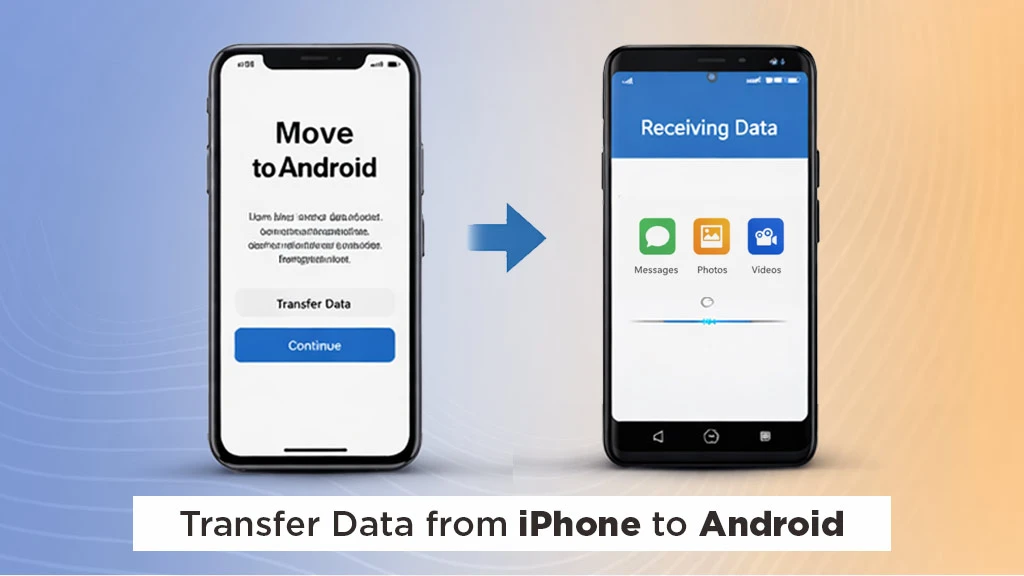
Using a wired connection: A cable is the simplest method to copy phone data to new phone, as it does not require any technical expertise. Here is how you can start the process:
- Firstly, you must charge both phones and update your iPhone to the latest software version.
- After that, you will need a Lightning to USB-C cable and an OTG adaptor.
- Turn on your new Android device, and you will be prompted to plug the cable into both phones.
- Next, you will be asked to choose the data you want to transfer.
- Lastly, unplug the cable once your data is copied over to your new device.
Using a wireless transfer: If you don’t have a USB cable, connect your device over Wi-Fi and transfer data to your new Android phone from your iPhone.
- Firstly, charge both phones and update your iPhone to the latest software version.
- Turn on your new Android phone. Follow the on-screen prompts and select the “no cable” option.
- Select the “switching from iPhone device?” option and log in to your Google account.
- Next, download the “switch to Android” app from the App Store to move contacts, calendar events, images, and videos.
- Complete the setup process on the app. Then, scan the provided QR code on your Android phone to start the data transfer procedure.
How to Transfer Data from Android to iPhone?
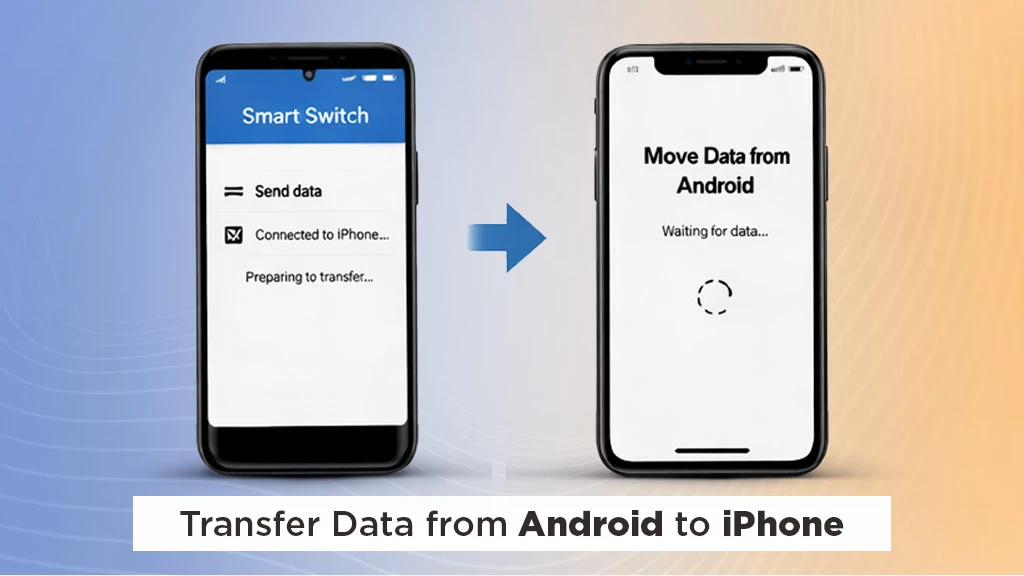
If you are transferring your Android phone data to an iPhone, make sure both devices are fully charged and both are connected to the same Wi-Fi network.
- Open the Google Play Store and install the “move to iOS” application.
- Turn on your new iPhone and follow the on-screen instructions. Select the “move data from Android” option.
- After that, you will get the six-digit code on your iPhone.
- Enter this code into the required field of the “move to iOS” app.
- Next, select the data you want to transfer from your Android device. Once you select everything you need, tap the “start transfer” option. Once the transfer data to new phone process is complete, follow the on-screen instructions to set up your iPhone.
Learning how to transfer data from one phone to another ensures a smooth upgrade without any hassle or lost information. By backing up your old phone properly and following the above-mentioned transferring methods, you can start enjoying your new smartphone in no time.
Frequently Asked Questions On How to Transfer Data When Switching Phones?
1. Do I need to back up my Android phone before transferring its data to an iPhone?
Yes, before starting the data transfer process, it's highly suggested that you back up your Android phone. This ensures that all data is securely sorted in the case of any unforeseen issues during the transfer.
2. How long does the data transfer procedure take?
The duration of the data transfer process depends on the amount of data you are transferring. It can range from a few minutes to several hours.
3. Can I transfer an app from my Android phone to my iPhone?
No, the move to the iOS app does not transfer apps from your Android smartphone to your iPhone.
4. Can I choose specific data to transfer from my Android phone to my iPhone?
Yes, you can choose the specific data you have to transfer from your Android phone to your iPhone. By downloading the “move to iOS” app, you can choose contacts, photos, videos, calendars, and more.
5. Is it possible to transfer data wirelessly on Android?
Yes, you can use the USB cable for transferring data on Android.






Related Blogs