How to Take a Screenshot on an iPhone: Quick and Easy Methods


You can easily save anything on your iPhone screen by taking a screenshot. Whether it’s a message from a friend, a recipe you want to try, or a product you are thinking of buying, taking a screenshot helps you save it for later. In this blog guide, let’s explore the different ways you can take a screenshot on your iPhone.
Table of Contents
- Overview: How to take a Screenshot on an iPhone?
- Alternative Ways to Take a Screenshot on your iPhone
- Where are the Screenshots saved on your iPhone?
- Final Thoughts
Overview: How to take a Screenshot on an iPhone?
If you are new to using an iPhone, figuring out how to capture screenshots might take a little time. Fortunately, there are several ways you can take a screenshot. However, the menu names and screenshot previews can differ based on your iPhone’s iOS version. Let’s explore each method step by step.
How to Capture a Screenshot on an iPhone with Face ID?
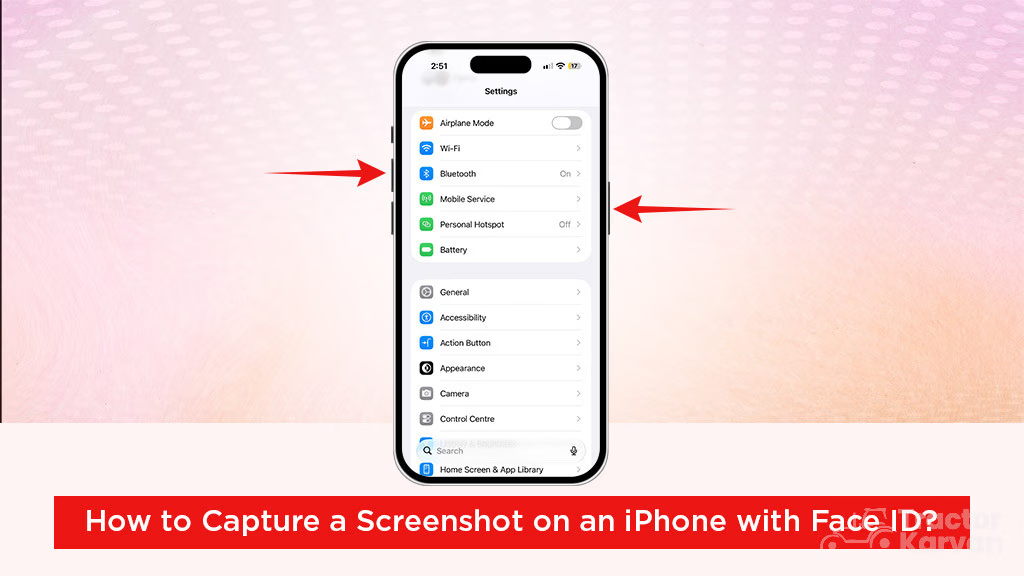
- Press the Side button and Volume Up button together.
- Then quickly release both buttons; your screenshot will be taken.
- Tap the screenshot preview to edit, share, or save it.
Capture a Screenshot on an iPhone Using Touch ID
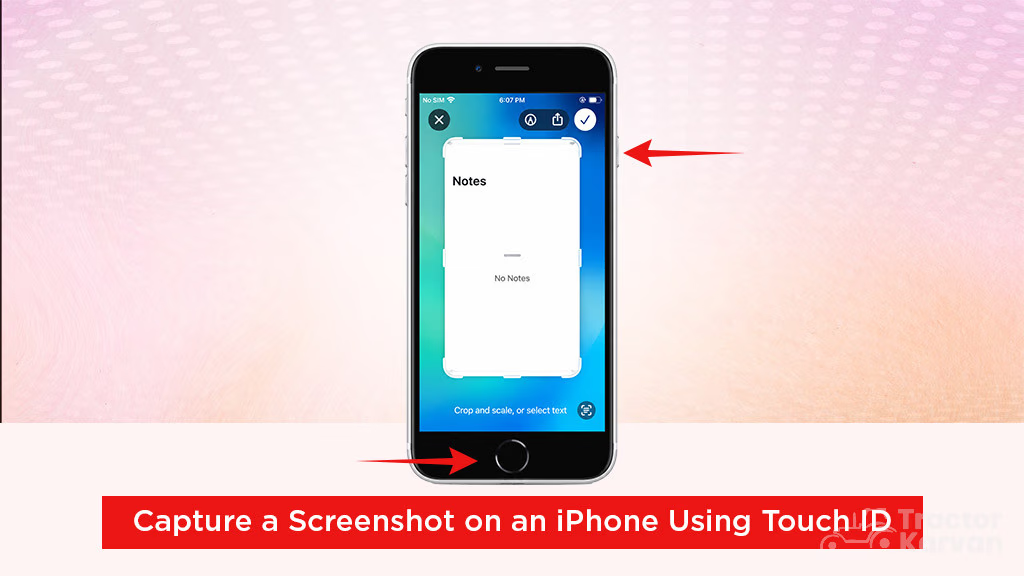
- Press the Side button and the Home button together.
- Then, quickly let go of both buttons.
- Your iPhone will take a screenshot.
- If you are using an iPhone with an iOS 18 or earlier version, a thumbnail will appear on the bottom-left corner of your screen. Tap the thumbnail to open or swipe it left to dismiss it.
- If your iPhone is running on the latest iOS, such as iOS 26, the screenshot will be displayed in a full-screen preview by default.
Take a Screenshot using the Touch ID and Top button
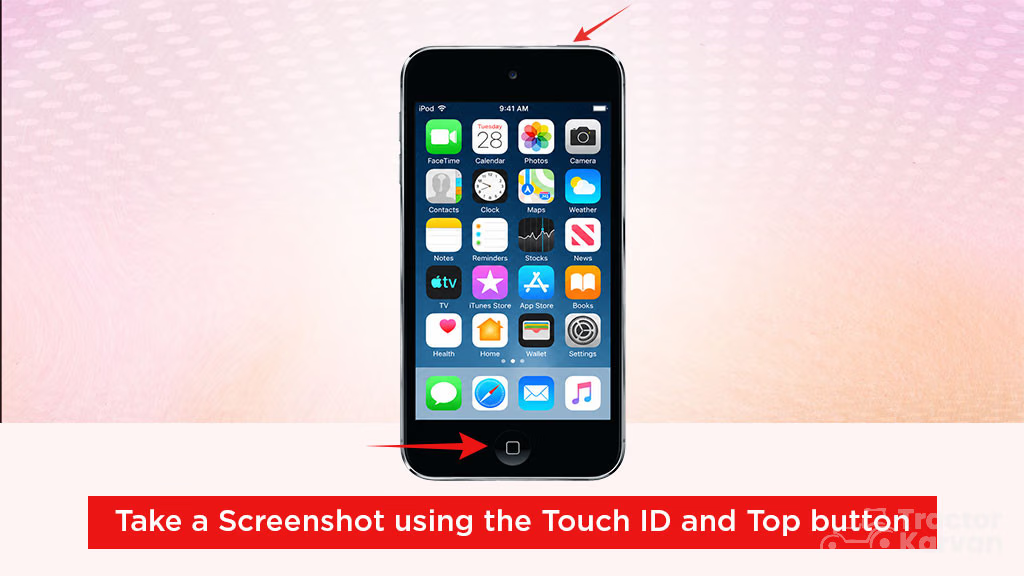
- Firstly, press the Top button and the Home button together.
- Then quickly release both buttons.
- As you release the button, a screenshot will be captured.
- Lastly, you can preview, edit, share, or save it.
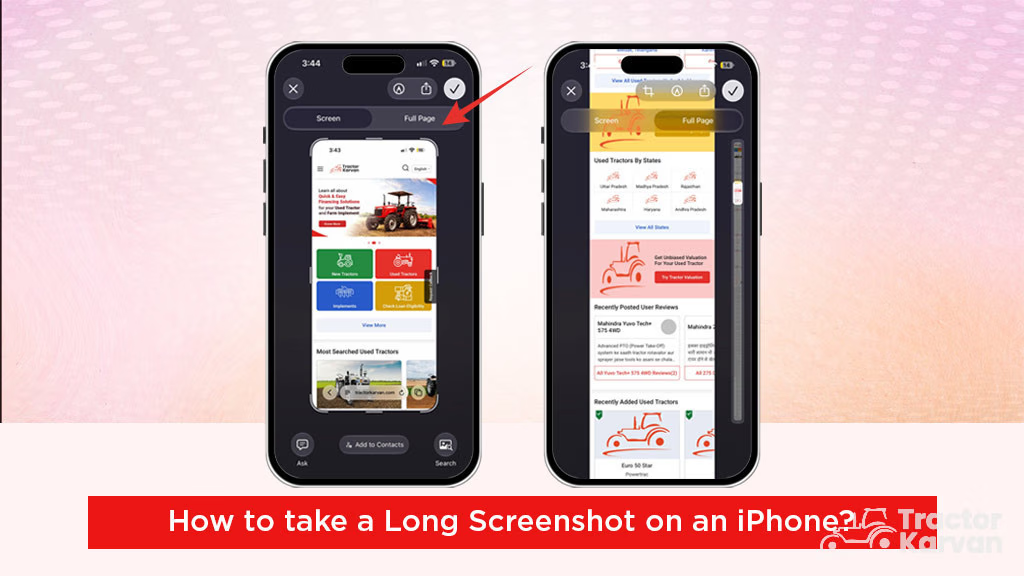
How to take a Long Screenshot on an iPhone?
- Firstly, take a screenshot by any method like Touch ID, Face ID, Siri, etc.
- Tap the screenshot to preview it in the bottom-left corner.
- Then, select Full Page at the top of the screen.
- Tap the Crop icon if you want to keep only a specific part.
- Tap Done or checkmark at the top-right corner.
- Finally, select Save to Photos.
Please note that this feature works only with support content, such as webpages in Safari.
Take a Screenshot Using the Head Tracking Feature
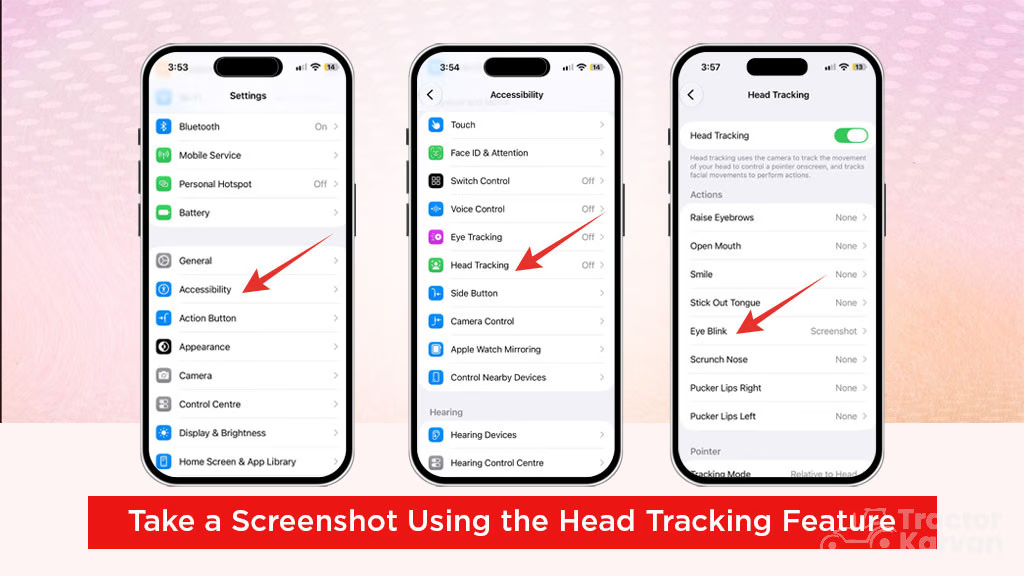
- Go to Settings > Accessibility > Head Tracking.
- Turn on the Head Tracking option.
- Choose a facial gesture, such as Eye Blink, to assign an action. For example, here we choose the screenshot option.
- Then, when you blink an eye, a screenshot will be taken.
Please note that this feature is available on supported iPhones with iOS 26 or later and may not work in earlier versions of iOS.
Alternative Ways to Take a Screenshot on your iPhone
If you do not want to use physical buttons, you can take a screenshot on your iPhone using alternative methods such as:
Siri Screenshot
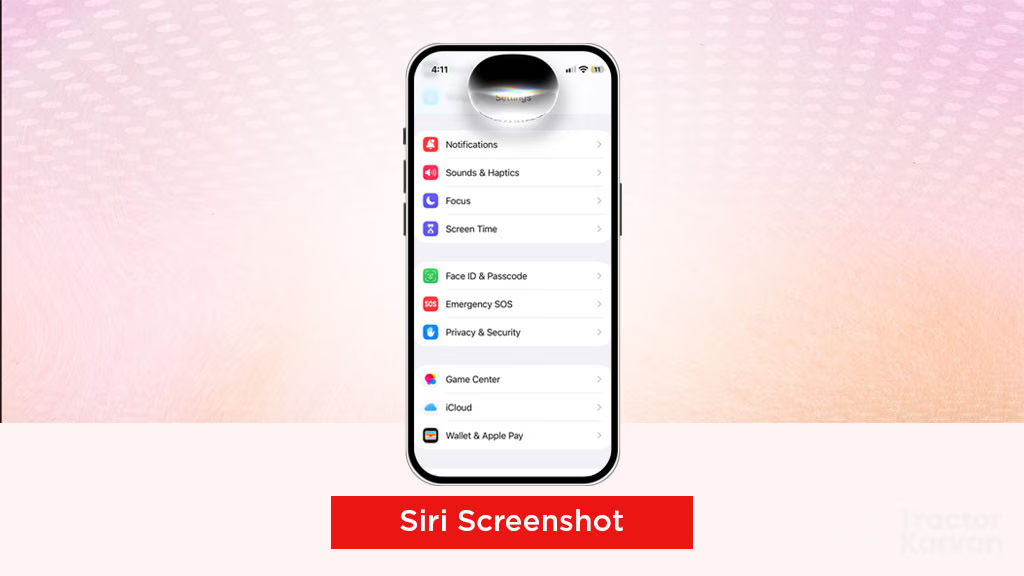
On your iPhone, activate Siri and say something like, “Hey, Siri, take a screenshot.” Siri will capture the screenshot for you.
Assistive Touch
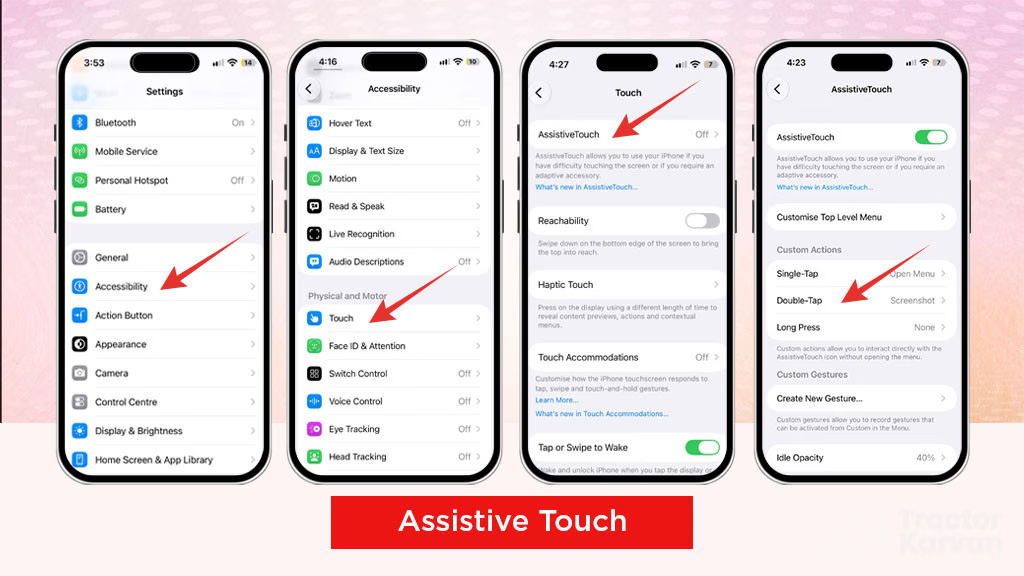
- You can also use Assistive Touch to take a screenshot.
- Go to Settings > Accessibility > Touch > Assistive Touch and turn it on.
- Then, under Custom Actions, you can choose from three options: Single Tap, Double-Tap, or Long Press.
- Choose the method which suits you the best.
- Finally, open the screen you want to capture and use your selected gesture on the Assistive Touch button to take a screenshot.
Back Tap
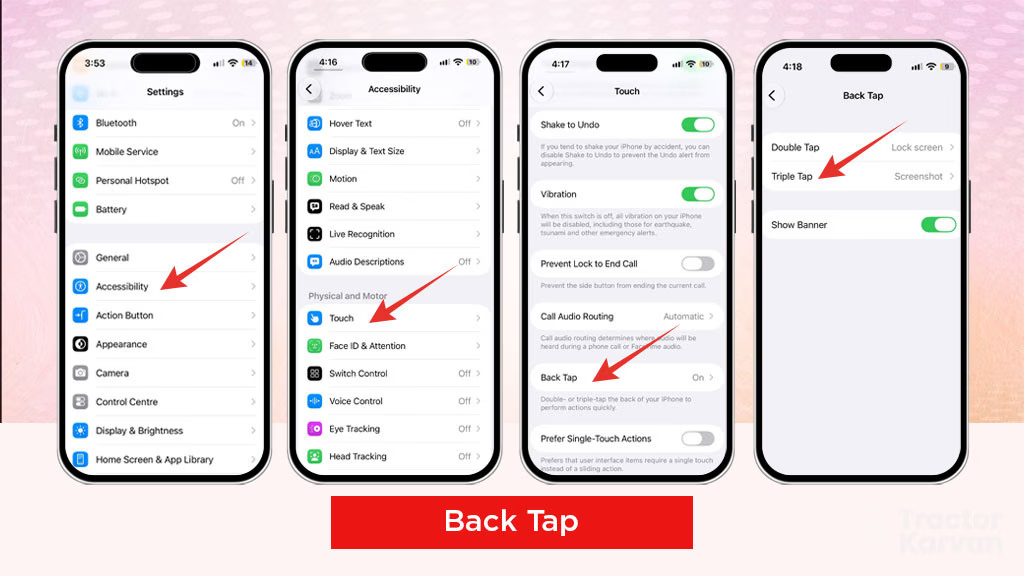
- Go to Settings > Accessibility > Touch > Back Tap.
- Choose the Double Tap or Triple Tap option and select Screenshot.
- Then, tap the back of your iPhone two or three times to take a screenshot.
Where Are the Screenshots Saved on your iPhone?
Every screenshot you capture on your iPhone is automatically saved in the photos app. To view your screenshots, open the Photos app and go to Collections > Screenshots. You will find all your screenshots captured in one place. You can also browse the library to see your photos and videos.
Final Thoughts
Taking screenshots on an iPhone is simple and easy. Whether you prefer pressing the side and volume buttons, using Siri for a hands-free approach, or setting up shortcuts like Back Tap and Assistive Touch, you can capture anything on your iPhone screen in just a few seconds. Choose the method that feels right to you. You can also explore our Apple iPhone page to discover the latest iPhone models and their features along with prices and EMI details. Visit our mobile loan page to learn more about financing options for your next iPhone purchase.
Frequently Asked Questions On How to Take a Screenshot on an iPhone: Quick and Easy Methods
1. What are the different ways you can take a screenshot on your iPhone?
The different ways you can take a screenshot on your iPhone are mentioned below.
• Face ID iPhones: Press the Side button and Volume up button at the same time to take a screenshot.
• Touch ID iPhones with a Side button: Press the Side button and Home button at the same time, then release both to take a screenshot.
• Touch ID iPhones with a Top button: Quickly take a screenshot by pressing the Top button and Home button together.
2. How do you take a screenshot on your iPhone without using the buttons?
You can use Siri, Assistive Touch, or Back Tap to take a screenshot without using any button combinations.
3. Where are the screenshots saved on an iPhone?
Screenshots are saved in Photos app. Open the Photos app on your iPhone and go to your main library or collection view. Scroll down to the Media Types section and tap Screenshots to view all captured images.
4. What is the easiest way to screenshot on an iPhone?
The easiest way to take a screenshot on an iPhone is to ask Siri to take a screenshot, with assistive touch or back tap feature.




Related Blogs